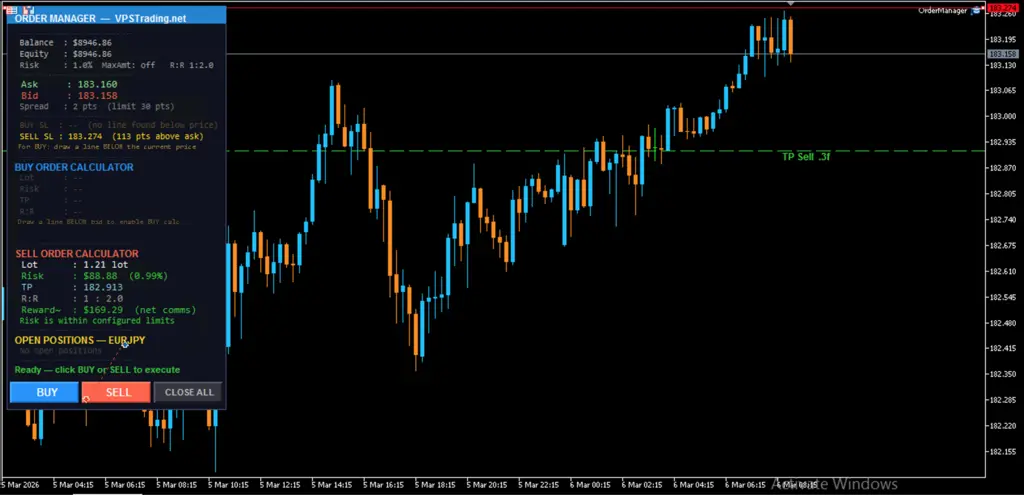
Order Manager is an Expert Advisor (EA) for MetaTrader 5, developed by VPSTrading.net. It helps traders execute orders with precision — without manually calculating lot size, stop loss, and take profit on every single trade.
The concept is simple: draw a horizontal line on your chart at your intended Stop Loss level, then click BUY or SELL. Order Manager automatically handles all calculations based on your configured risk management settings.
Key Features
- Auto Lot Sizing — Calculates the exact position size based on your account equity and risk percentage.
- H-Line SL Detection — Reads any horizontal line you draw on the chart as your Stop Loss level.
- Live Order Preview — Shows lot size, risk amount, TP price, and estimated reward before you execute.
- Commission Compensation — TP is automatically extended to cover round-trip broker commissions.
- Risk Guards — Blocks orders that exceed your configured risk limits.
- Spread Filter — Prevents execution when market spread is above your defined maximum.
- Live Dashboard — Real-time information panel on your chart showing account data, open positions, and order status.
Activation & Account Pairing
Order Manager is free for all active VPSTrading.net subscribers. If you already have an active service (VPS, Signals, or any other service), you are entitled to use this tool at no extra cost.
Follow these steps to activate:
- Make sure you have an active service at www.vpstrading.net.
- Open MetaTrader 5 and note down your trading account number (shown in the top-left of the platform).
- Visit the pairing portal: https://pairing.vpstrading.net
- Enter your MT5 account number in the form and submit.
- Once the confirmation appears, your account is registered and ready to use.
- Download
OrderManager.ex5, attach it to a chart in MT5 — the EA will verify your account automatically on first load.
Pairing multiple accounts: If you want to use Order Manager on more than one MT5 account, simply repeat the pairing process for each account number at pairing.vpstrading.net. No additional payment is required as long as your VPSTrading.net service remains active.
Whitelist the URL in MT5: MT5 blocks all outbound internet connections from EAs by default. To allow license verification, go to Tools → Options → Expert Advisors, check "Allow WebRequest for listed URL", add https://pairing.vpstrading.net, and click OK.
⚠️ Note: If you see the error "No response from license server", the cause is almost always a missing WebRequest whitelist entry. Follow the steps above and re-attach the EA.
Installation
- Download
OrderManager.ex5to your computer. - In MT5, go to File → Open Data Folder, then open the
MQL5 → Expertsfolder. - Paste
OrderManager.ex5into that folder. - In the MT5 Navigator panel, right-click Expert Advisors → Refresh.
- Make sure the Auto Trading button in the MT5 toolbar is active (green).
- Drag the EA from the Navigator onto the chart of the symbol you want to trade, configure the parameters, and click OK.
Configuration Parameters
All parameters can be changed in the Inputs tab when attaching the EA to a chart.
| Parameter | Default | Description |
|---|---|---|
RiskPercent |
1.0 | Percentage of equity to risk per trade. Example: 1.0 = risk 1% of your equity. |
RewardRatio |
2.0 | Take Profit multiplier relative to Stop Loss distance. 2.0 = 1:2 Risk-to-Reward. |
CommissionPerLot |
7.0 | Round-trip commission per 1.0 lot in deposit currency. Used to extend TP automatically. |
MaxRiskAmount |
0.0 | Maximum risk per trade in currency amount. Set to 0 to disable this cap. |
MagicNumber |
20260101 | Unique identifier tag for this EA's orders. |
MaxSpread |
30 | Maximum allowed spread in points. Orders are blocked when spread exceeds this value. |
How to Use
Placing a BUY order:
- Identify your Stop Loss level (support zone, swing low, etc.).
- Draw a horizontal line below the current bid price.
- The dashboard will automatically display the BUY calculation (lot, risk, TP).
- Verify the numbers, then click the BUY button.
Placing a SELL order:
- Identify your Stop Loss level (resistance zone, swing high, etc.).
- Draw a horizontal line above the current ask price.
- The dashboard will automatically display the SELL calculation.
- Verify the numbers, then click the SELL button.
Every time you press BUY or SELL, the EA automatically validates: no existing position open, spread within limit, SL line detected, lot size is valid, and risk does not exceed configured limits. If any check fails, the order is blocked and an alert is shown.
Frequently Asked Questions
Is Order Manager free or paid?
It is completely free for all users with an active service at VPSTrading.net.
Does it work on demo accounts?
Yes. The pairing process works for both demo and live accounts.
Which symbols are supported?
All symbols available in your MT5: Forex, Gold (XAUUSD), indices, commodities, and cryptocurrencies.
Does the EA close trades automatically at TP or SL?
The EA sets TP and SL prices when the order is opened. MetaTrader 5 handles the automatic closure when price reaches those levels.
How do I update to a newer version?
Replace the old OrderManager.ex5 with the new version in the MQL5/Experts folder and restart MT5. Re-pairing is not required.
For further assistance or technical support, please contact our team via live chat or open a ticket at www.vpstrading.net.


 USD
USD IDR
IDR