In this guide, we explain how to run MetaGuard5 on the MetaTrader 5 platform. If you have previously used MetaGuard4, you will find MetaGuard5 easy to use because it shares the same input configuration structure.
Initial Installation Instructions:
Inside your server, MetaGuard5 can be installed through the folder MENU on the server desktop > Automate Activation > MetaGuard > MetaGuard MT5. Run the application metaguard5.exe to automatically download and install metaguard5.ex5 into all your Pre-Installed MetaTrader 5 terminals. Please check the Release Version section below to ensure you are using the latest version of MetaGuard5.
MetaGuard5 works on Pre-Installed MetaTrader 5 terminals provided on the server and is a newly released tool. For servers activated before March 25, 2026, an environment update may be required. Please Open a Ticket if you need assistance installing MetaGuard5 by providing your Server IP, Username, and Password. Our support team will gladly update your server environment. This update and the use of MetaGuard5 are completely FREE.
Step-by-Step Guide to Running MetaGuard5
1. First, pair / activate the trading account you want to monitor at https://pairing.vpstrading.net. Activation approval will be sent via WhatsApp.
2. Log in to your trading account on the VPS.
3. Set your trading account as a favorite by right-clicking the account and selecting Add to favorites, as shown below:
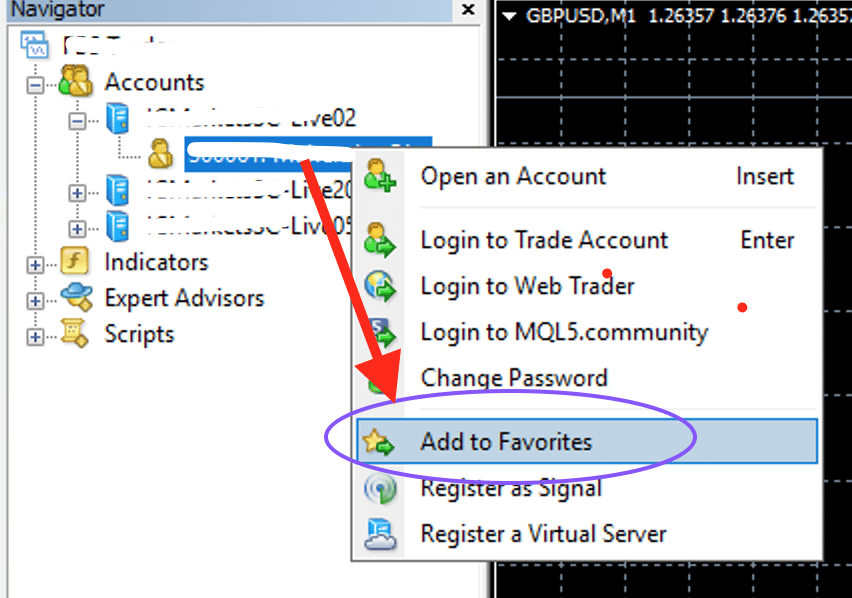
Fig 1. Add to Favorites Button
4. Open MetaTrader 5 menu Tools > Options, then select the Expert Advisors tab and apply the following settings:
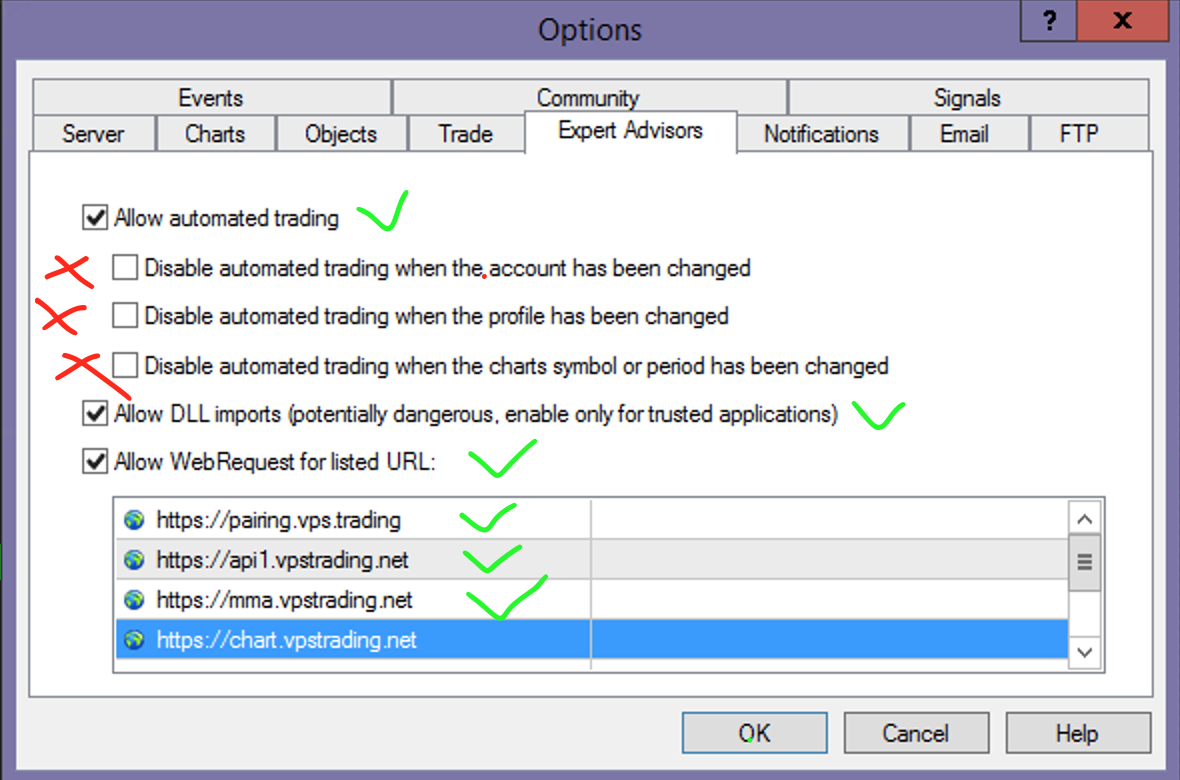
1. Enable Allow automated trading
2. Uncheck ALL of the following (REQUIRED):
- Disable automated trading when the account has been changed.
- Disable automated trading when the profile has been changed.
- Disable automated trading when the chart's symbol or period has been changed.
3. Enable Allow DLL imports.
4. Enable Allow WebRequest for listed URL and add the WebRequest URLs (domain or subdomain depending on the URL you received). Use the default VPSTrading.net WebRequest URLs below: https://api1.vpstrading.net, https://pairing.vpstrading.net
5. Attach metaguard5.ex5 to only ONE chart using timeframe 1 Minute (M1).
For example: NZDUSD Timeframe M1 (1 Minute). Then open the Inputs configuration tab.
6. In the MetaGuard5 Inputs configuration, focus on the following parameters:
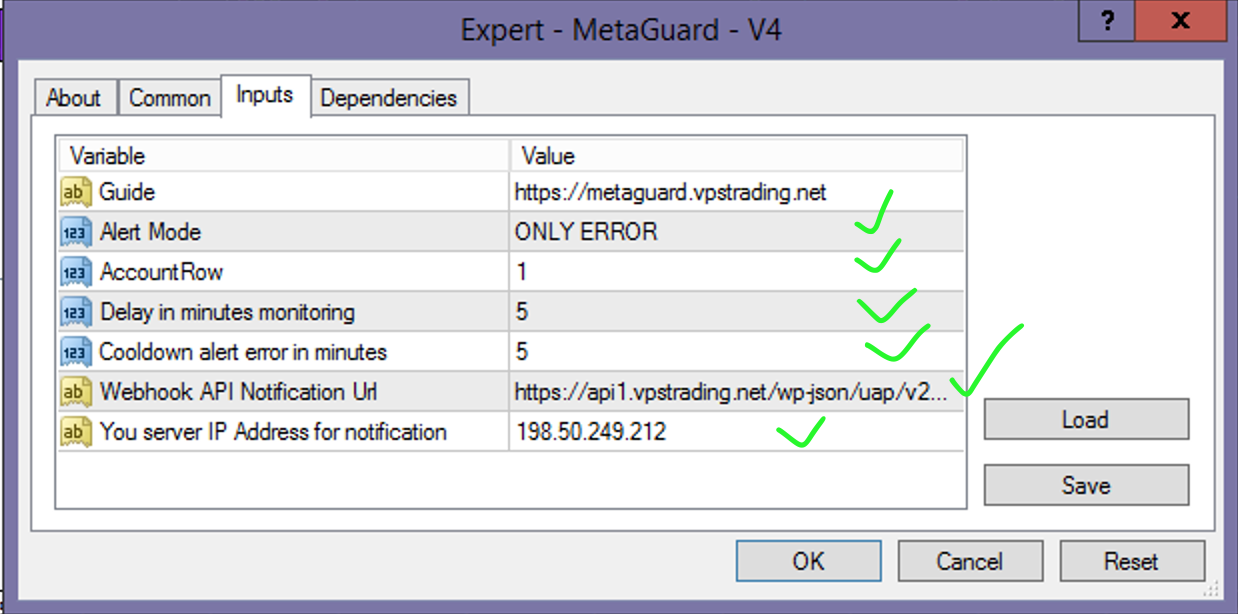
Alert mode: DISABLE / ALL ALERT / ONLY ERROR (Recommended: ONLY ERROR — receive alerts only when unresolved issues occur).
AccountRow: 1 (default value).
Delay in Minutes Monitoring: 5 (Recommended monitoring update interval).
Cooldown alert error in minutes: 5 (Recommended delay to prevent alert spam).
Webhook Notification Url: input your Webhook API URL (contact support if you have not received one).
Your server IP Address for notification: enter your server IP address.
Click OK when finished.
MetaGuard5 will display its status on your chart as shown below:
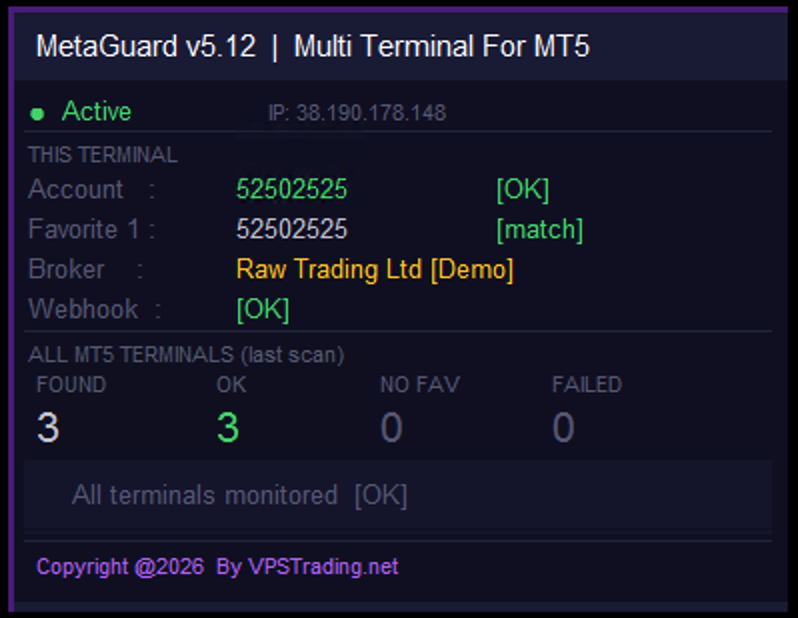
MetaGuard is now running on your trading account.
If your trading account becomes disconnected, MetaGuard5 will send notifications to your registered Email / WhatsApp / Telegram:
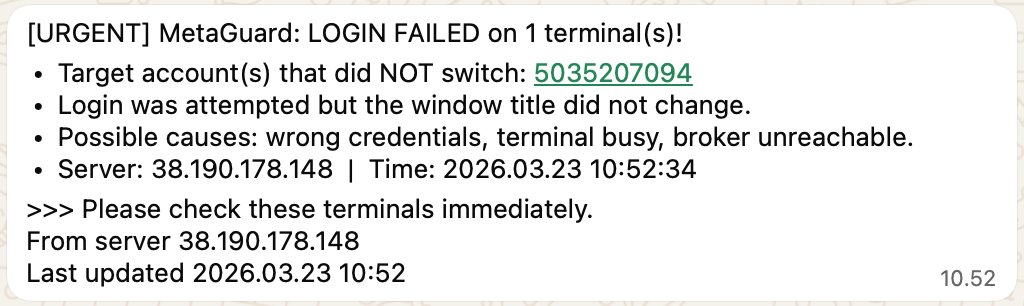
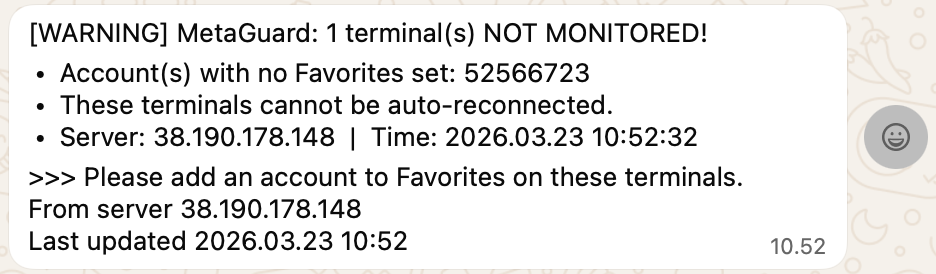
NOTE: MetaGuard5 is NOT a trading robot and does not execute trades automatically. MetaGuard5 works purely as a connection monitoring tool and will not interfere with any Expert Advisor (EA) running on your terminal.
Download
Release Notes Version:
MetaGuard Version 5.12 (March 23, 2026)
- Multi-terminal monitoring runs from only one chart but monitors all MT5 terminals running on the server.
- Alerts if the account is not set as favorite and alerts when auto-reconnect fails.


 USD
USD IDR
IDR